
Contents
- Introduction
- The Document Object Model
- The Accessibility Tree
- Viewing the accessibility tree
- What is not included in the tree
- The impact of CSS
- Accessibility APIs
- Where differences start to appear
- Wrap-up
Introduction
You might have heard a screen-reader reading through a page and providing a lot of extra information to the user, other than what is visible. This information is important to convey information which a user who can see the screen might infer from the visual display, but which a screen-reader user who relies purely on the audible cues might miss - for example “how many items are in this list and which item am I on?”.
So where is it getting this information from?
The Document Object Model
When the browser renders the page it generates the Document Object Model, or DOM.
The DOM is a representation of the page as a set of nodes for each element and you may have seen a visualisation of this in the Elements and Properties panels of your browser developer tools.
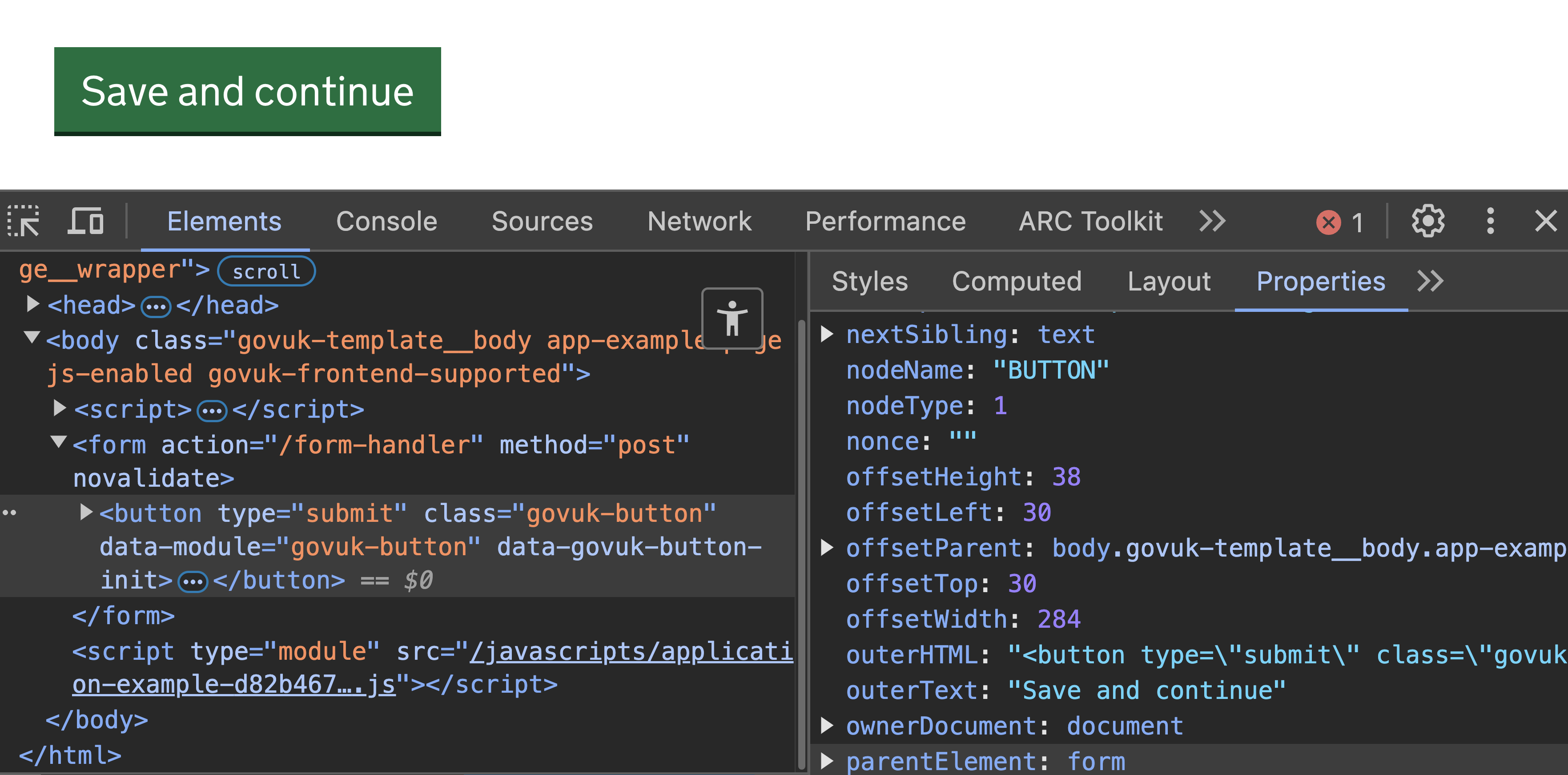
So an HTML page with a button:
<html>
  <head>
    <title>DOM</title>
  </head>
  <body>
    <button>Save and continue</button>
  </body>
</html>
Will be represented by this DOM:
Document
  HTML
    Head
      Title
        "DOM"
    Body
      Button
        "Save and continue"
When the browser creates the DOM, it also generates a version of it called the Accessibility Tree.
The Accessibility Tree
The Accessibility Tree provides specific information which is of use to assistive technology such as screen-readers. The two main pieces of information are the item's Name and its Role.
Name
More accurately "accessible name", this is way the user will interact with the element. For a screen-reader this is announced; for a speech-recognition user this is the thing they will need to say to interact with the item.
At its simplest it is the text contents of the element. The accessible name of the link below is "Bob":
<a href="...">Bob</a>
So this will be announced as "Bob, link" to a screen-reader, and a speech-recognition user may say "Click Bob" to activate the link.
Accessible names can come from sources other than just content. For example:
- an image's accessible name is generally its
altattribute - a form input's accessible name normally comes from it's associated
label
Read more about accessible names
Role
A role is the function of that element. Many HTML elements have implicit roles, for example an a element has a role of "link" and a nav element has a role of "navigation". For screen-reader users this is announced along with the accessible name to give the user an idea of what the purpose of the item is and perhaps what interactions may be possible.
For example, if we just created a button with a div and some javascript click handlers:
<div>Continue</div>
This would only be announced to a screen-reader user as plain text:
“Continue”
The user has no indication that this is clickable beyond the contained text. But if we use the correct element (and therefore the correct role):
<button>Continue</button>
Then as well as saving ourselves the effort of writing extra javascript, our screen-reader user now knows it is a button which can be clicked:
“Continue, button”
Other properties
There are other accessibility properties which give more information, such as state - is the button focussed or not, is the drop-down expanded or not, and so on. These are passed along in the accessibility tree.
The presence of these properties will depend on the particular type of element. Some HTML elements have implicit states. For example a checkbox input can have a "selected/checked" state.
ARIA allows us to expand on these implicit states where HTML does not have equivalents:
aria-posinset- gives the position of an element within a set of elementsaria-pressed- lets the user know the element is in a pressed statearia-expanded- lets the user know the element is in an expanded statearia-describedby- creates a relationship with other elements to provide more informationaria-autocomplete- on aninputthis tells the browser it might be able to be filled from stored data
This helps ensure a user who cannot see the interface gets the same information which would otherwise only be presented visually.
Putting it all together
In the image below we have an h1 highlighted. We can see from the developer tools that its accessible name is taken from the the text inside the heading. It also has a role of “heading” and a level of “1” both which come from the element (an h1 - an h2 heading would present as a "level 2").
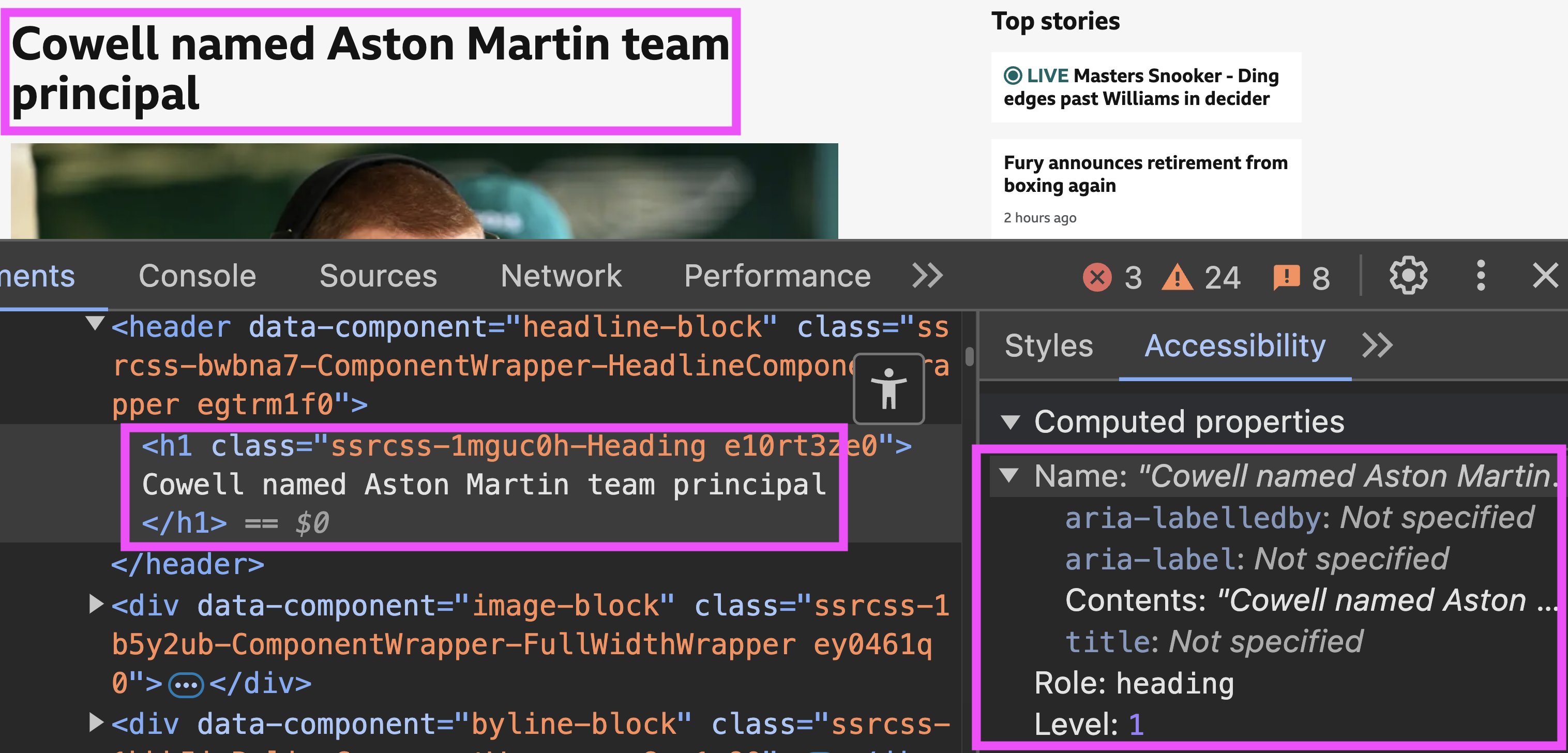
To a screen-reader this is announced as:
“Cowell named Aston Martin team principal, heading, level 1”
As you can see, the name, role and other properties help the screen-reader user build a picture of the structure of the content. This also demonstrates the importance of good semantic HTML.
Viewing the accessibility tree
So how do we see this accessibility tree? In Chrome and Firefox this is part of the developer tools under the accessibility panel.
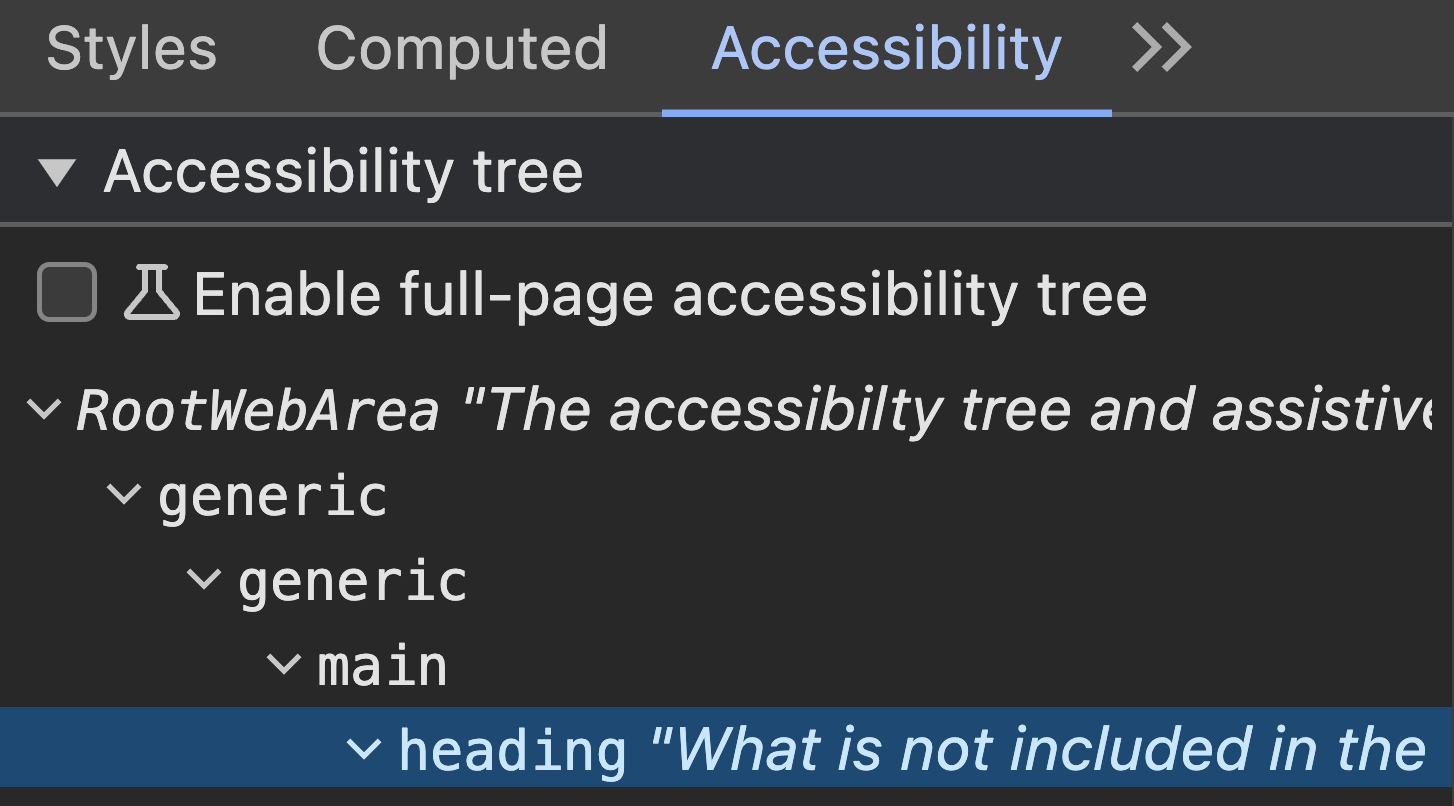
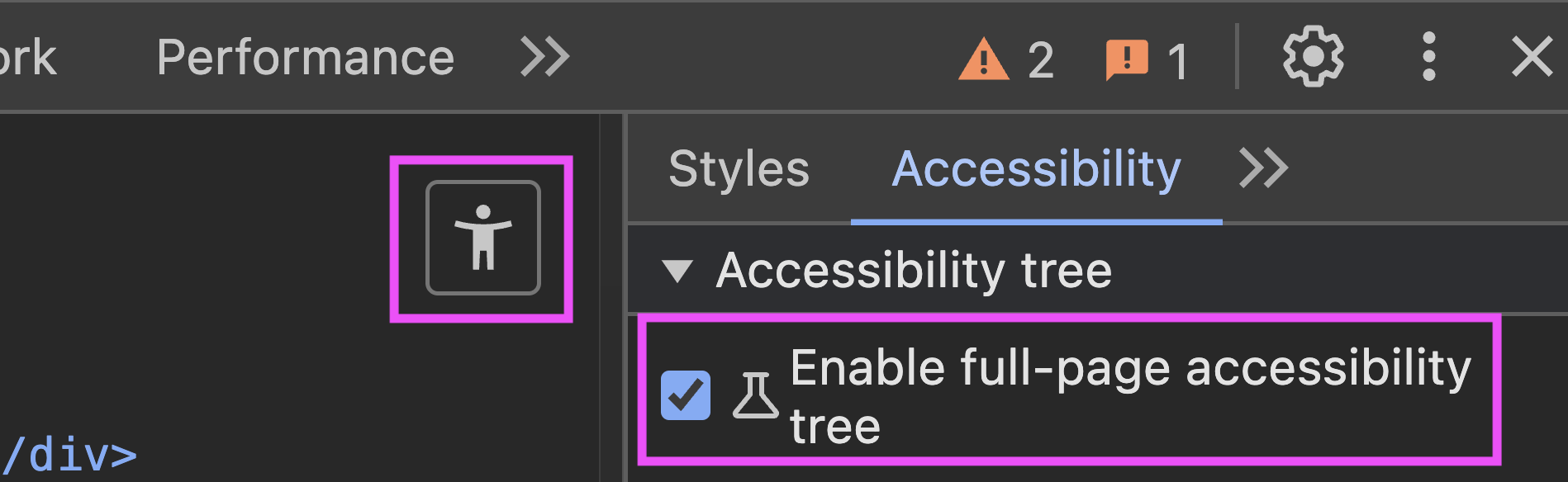
In both browsers you will see the tree represented as a tree-view of roles and accessible names (along with some other properties where assigned) like this:
main
  heading "Viewing the accessibility tree"
    StaticText "Viewing the accessibility tree"
    paragraph
      StaticText "So how do we see this ..."
    figure
      image "Chrome developer tools ..."
"StaticText" just refers to plain text. You can see how the text which sits inside the heading provides the accessible name for that heading, as does the alt text for the image. You can also see how a paragraph does not generate an accessible name, but the plain text will still be passed along.
So with this set of data we can begin to build a picture of this element and how it will be communicated.
What is not included in the tree
When you examine the Accessibility Tree you may notice that when compared to the DOM there is a lot of “structure” missing from the page.
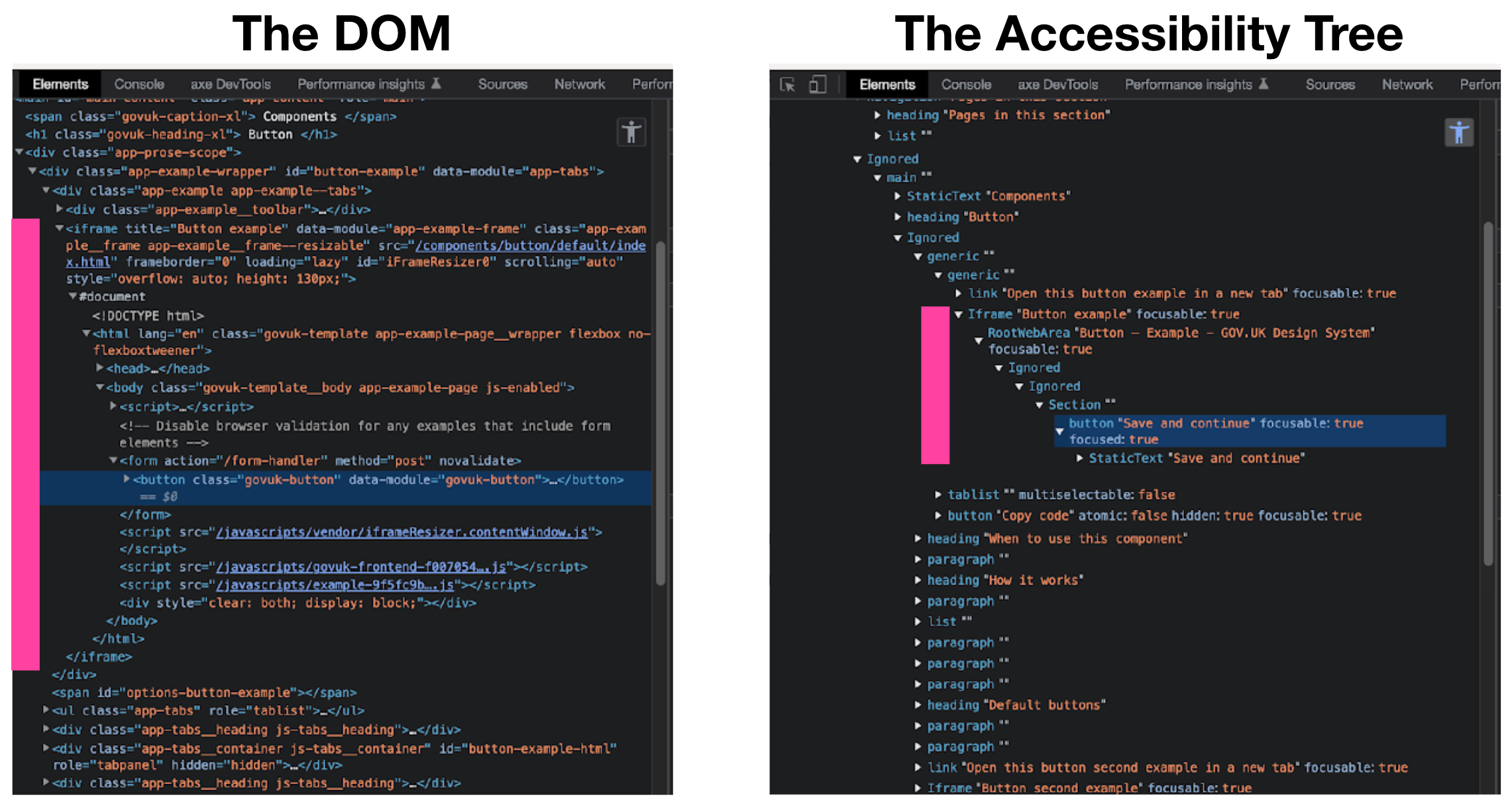
A lot of this is attributes which are ignored (unless they affect how the element is exposed), but there are also whole elements which are not included.
You will see these marked as “Ignored” (in Chrome) or just not even represented at all (in Firefox). This is because only those elements which have meaning for assistive technology will be carried over from the DOM to the Accessibility Tree. For example a div has no meaning to a screen-reader so won’t make it, although its contents may.
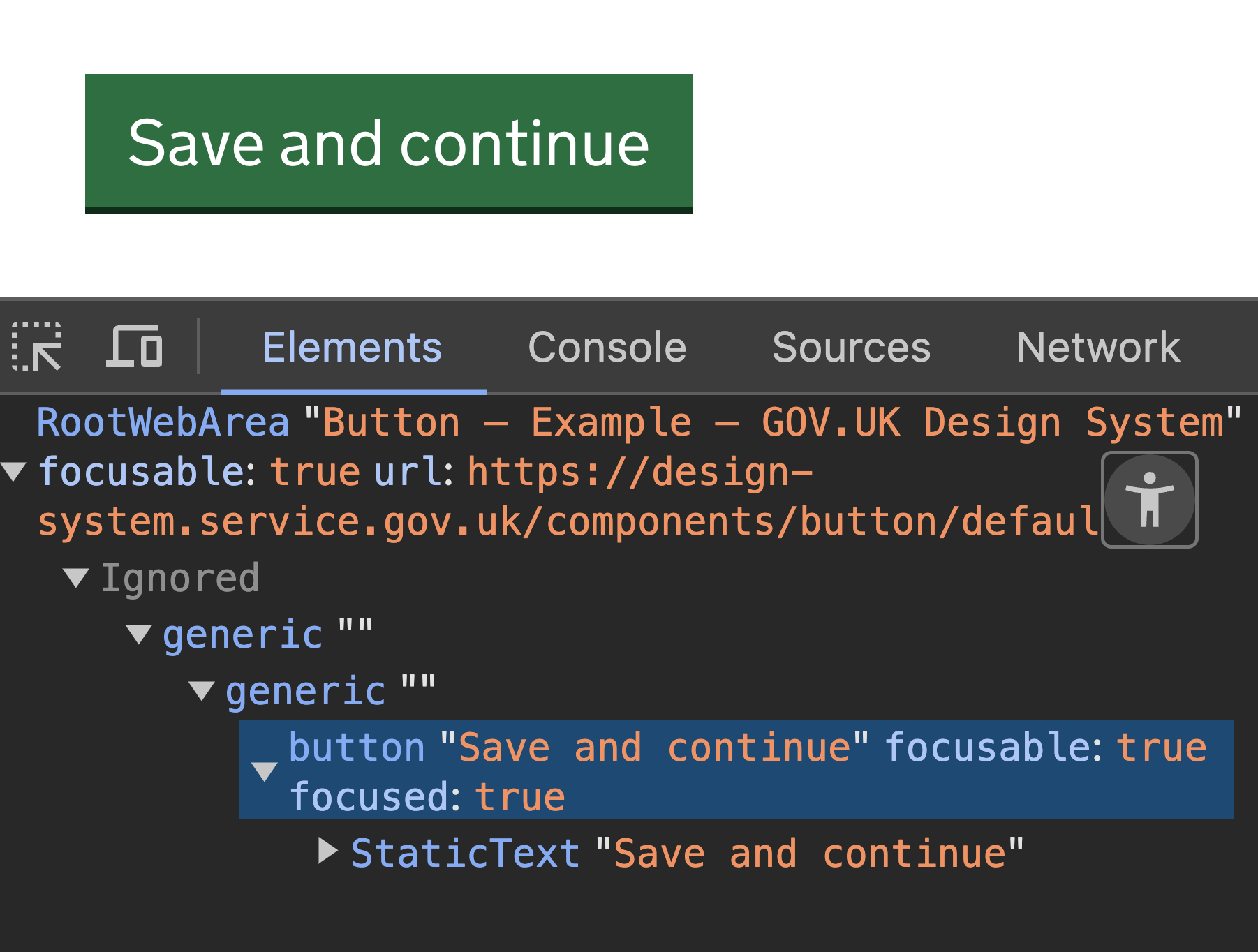
This is where mis-use of ARIA can be a problem. For example, assigning a role="presentation" to a button will change how it is exposed to the accessibility tree.
The impact of CSS
Something else to bear in mind is that CSS can also play a part. If you have an element like a button which would normally be included, but it has CSS applied such as display: none, then that will remove it from the Accessibility Tree, as the CSS makes it invisible to assistive technology.
Accessibility APIs
So do assistive technologies like screen-readers just reach into the browser and grab this data? Well, no. Each OS will utilise a particular Accessibility API to act as an interface to the assistive technology.
There are several Accessibility APIs and the particular one will vary based on the operating system being used and even the browser.
These are some of the APIs:
- MSAA/IAccessible and IAccessible2 on Windows
- NSAccessibility on OS X
- UIAccessibility on iOS
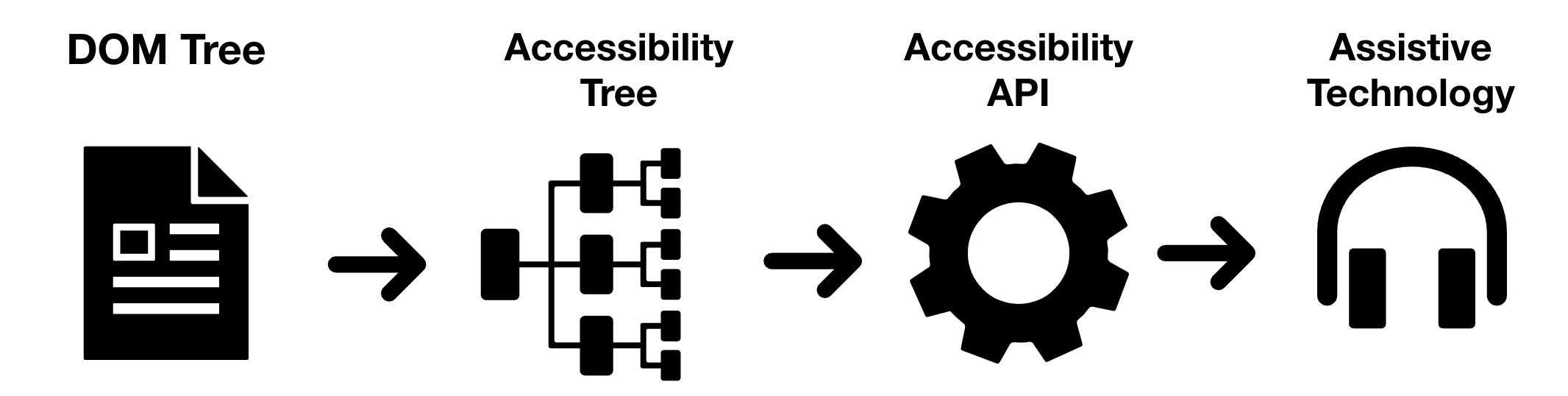
So we can now see how the end-to-end chain of custody of our element’s properties is created. The browser generates the DOM which is used to build the Accessibility Tree, which is used by one of the Accessibility APIs to pass the information onto the assistive technology.
Where differences start to appear
These connections all means that there are several places where slight differences in interpretation can start to creep in.
- The browser engines are making decisions in how they translate the DOM into the Accessibility Tree.
- The different APIs may offer varying levels of support for things like ARIA attributes.
- Different assistive technology will also have variances in support for features like ARIA.
- Different releases of OS, browers and assistive technology can also introduce support for features or in some cases change or break support.
- To further complicate matters, browsers or assistive technology may also add in their own heuristics to make things better for their own users.
Screen-reader and browser heuristics
Sometimes rules are added to help users. Often this is in an effort to fix experiences broken by developers, but this can confuse developers who might not expect certain behaviour and think there is a bug.
Here are a few examples of how these have come about:
Lists in WebKit
If you create an unordered list in HTML (using ul), but then remove the visual indicators (the dots or similar next to each list item), then WebKit will no longer see that as a list and so an identification of this as a list will not be passed along to the Accessibility API.
This was done a few years back in response to developers jumping on “semantic markup” and suddenly seeing everything as lists. Got a bunch of navigation links? Must be a list. Got a group of blog posts? Must be a list. Suddenly everything seemed to be a list and this was getting passed along to screen-reader users. If you have ever listened to how a list is communicated to a screen-reader, then you will understand why this massive increase in informational noise led to VoiceOver users bombarding Apple asking them to do something.
The result was that they added a rule that if something doesn’t actually look like a list to a visual user, then there is no reason for a screen-reader user to be told it is a list, even if the developer marked it up as one.
So now if you really want something to be announced as a list (think about this first) and it doesn't look like a list, then you need to add a (redundant) role which will push it through:
<ul role="list">
  <li>...
Tables
Tables are another place where browser engines have rules to check if they consider the table is being used as a layout tool rather than an actual table, although the rules are far from perfect. But the misuse of tables was so great that they had to try.
WebKit has a set of rules to help it determine if a table is one which should be exposed as such to assistive technology. These checks including looking at the number of rows, if it has cell-spacing, if it has correct markup, even if it has zebra-striping applied.
Labels and JAWS and VoiceOver
Screen-readers also exhibit this style of heuristic behaviour. Take the below html as an example:
<label>Your email</label>
<input type="email" name="email">
The input here has no accessible name - the label is missing a for attribute to connect the two together.
By the spec the input will be announced as "Edit text" to a screen-reader.
However if JAWS or VoiceOver encounters a field like this then it looks to see if there is any text immediately before the input (in the source code order). If there is, then it gambles that this is most likely the intended label text (regardless if it is marked up with a label tag or not, because developers don’t always do good jobs), and assigns it to the input.
If the text doesn’t happen to be the label text (for example there is a hint between the two) then this can be confusing, but it probably helps more users than it confuses.
Note this kind of heuristic can also be misleading when testing - the example above would sound ok with JAWS and VoiceOver because of this behaviour, but would be broken in other screen-readers. This is a reason we need to test with multiple screen-readers as well as checking the code.
Wrap-up
Getting the information from the browser to the user in an efficient way means it passes through several steps before the user receives it. Whilst this has massive benefits for the user it can mean that there is sometimes inconsistency due to differing levels of support (or even imposed user-protection) in either the browser, API or assistive technology.
However, understanding how changes to the markup affect this chain of custody makes for a better end product.